
Copy the Signal APK from your PC to your phone
Published: October 7, 2026
Signal Foundationfrom Signal's official site — file hosted by Signal, not by us. signal.org/android/apk
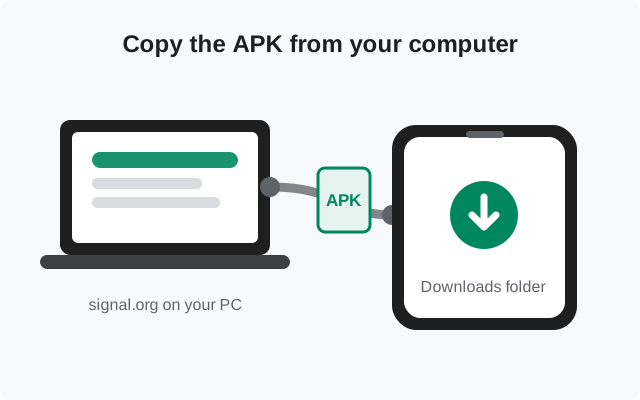
Sometimes downloading the Signal APK directly on your phone isn't practical: mobile data is expensive or capped, the phone's browser keeps failing the download, or you're setting up a phone with no data connection at all. The fix is simple. Download the file on your computer, where the connection is fast and reliable, then copy it to the phone over USB.
This guide covers the whole flow: when the PC route makes sense, what you need, the exact steps on Windows, Mac, and Linux, how to verify the file survived the copy intact, and the usual suspects when the transfer fails. The file is the official APK from signal.org/android/apk, currently website build 8.29.3, package org.thoughtcrime.securesms, downloaded on the PC, not from it.
When downloading on the PC makes sense
The PC route wins in four situations. Metered mobile data: the APK is tens of megabytes: trivial on broadband, meaningful on a 1GB monthly plan. Unreliable phone downloads: some phone browsers corrupt large downloads or the connection drops repeatedly; a PC download manager finishes what a phone browser can't. No data on the phone: setting up a Wi-Fi-only device or a phone with an inactive SIM. The PC has the internet the phone lacks. Verification: checking the SHA-256 fingerprint is easier on a computer with proper tools, and you can verify before the file ever touches the phone.
When doesn't it make sense? If the phone downloads fine, just download on the phone. Every extra hop is another place for something to go wrong. The PC route is a workaround for concrete problems, not a ritual.
It's also the right move when you're setting up phones for other people, a family member's new device or several field phones for a team. Download once, verify once, then copy the same checked file to each phone. That beats downloading separately on every device, and it means every install traces back to the one file you verified.
What you need before you start
- A computer with a working internet connection (Windows, Mac, or Linux all work).
- A USB cable that carries data. This is the classic gotcha: many cheap cables are charge-only. If the phone only charges when plugged in and never offers a USB mode prompt, try another cable.
- The phone, unlocked, with USB debugging NOT required. Plain file transfer (MTP) is enough. Don't enable developer options for this.
- A few hundred MB free on the phone, for the file plus the install.
- On Windows: nothing extra. MTP works out of the box. On Mac: install Android File Transfer (Google's free tool) or an alternative like OpenMTP, since macOS doesn't speak MTP natively. On Linux: most file managers handle MTP; if not, install
mtp-tools/gvfs-mtpfor your distro.
Step 1: download the APK on your computer
Open Signal's APK page
In your computer's browser, go to signal.org/android/apk, the official page, not a mirror.
Download the file
Click Signal's download link and save the APK somewhere you'll find it, like the Desktop or Downloads folder. The file name looks like
Signal-Android-website-prod-universal-release-8.29.3.apk.Note the fingerprint
While you're on the page, note the SHA-256 fingerprint Signal publishes there. You'll compare against it after the copy. This is the integrity check that proves the file is genuine.
Do not download from anywhere else. A "Signal APK" from a file host, forum attachment, or blog download button is not verifiable the same way. The mirror warning guide explains what can hide inside repackaged files.
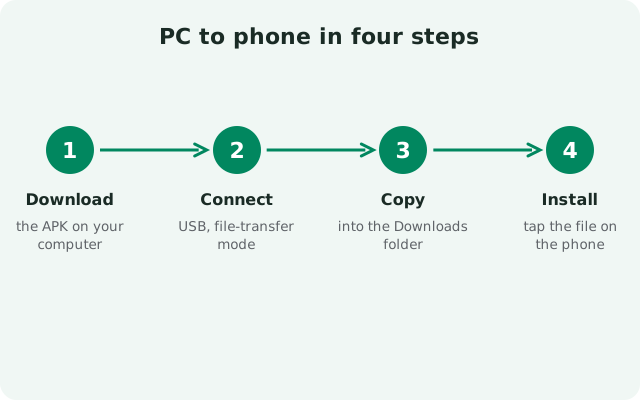
Step 2: connect the phone and pick file transfer
Plug in the USB cable
Connect the phone to the computer. Unlock the phone. Locked phones won't expose files.
Choose "File transfer"
On the phone, a USB notification appears: "Charging this device via USB. Tap for more options." Tap it and select File transfer (also called MTP). This is the step everyone misses: without it, the computer sees nothing.
Open the phone on the computer
Windows: the phone appears in File Explorer. Mac: open Android File Transfer. Linux: the phone appears in your file manager.
If no USB prompt appears on the phone, suspect the cable first (charge-only cables are extremely common), then the port. Try a different USB port on the computer, preferably one directly on the machine rather than a hub.
Step 3: copy the file to the phone
Drag the APK from your computer into the phone's Download folder. Putting it in Downloads keeps it easy to find in the next step. Wait for the copy to fully complete; don't unplug mid-transfer. USB 2.0 ports move tens of megabytes in well under a minute, so if it hangs for several minutes, something is wrong. Cancel and retry rather than installing a half-copied file.
Copy, don't move: keep the original on the computer until the phone install succeeds. If anything goes wrong you can re-copy in seconds instead of re-downloading.
Where you put the file on the phone matters more than people expect. The Download folder is the right choice: every Android file manager knows it, it survives reboots, and scoped-storage rules don't interfere with opening files there. Avoid burying the APK in app-private folders (like inside another app's data directory) or on adopted SD-card storage formatted as internal. Both can make the file invisible to the installer or unreadable at install time. If your phone has an SD card, copy to internal storage's Download folder, not the card: cards are slower, more corruption-prone, and occasionally unmount mid-install. After Signal is installed and running, delete the APK from the phone. It serves no purpose afterward, and keeping installers lying around is just clutter that a future you might mistake for the current version.
Step 4: find the file on the phone and install it
Unplug the phone
Once the copy finishes, eject/unplug. (MTP doesn't need formal ejection, but let the transfer finish.)
Open the file
On the phone, open the Files app, go to Downloads, and tap the APK.
Allow the file manager to install apps
Android asks for the "Install unknown apps" permission. Grant it for your Files app (only that app). Our no-Play-Store guide has the per-brand settings paths.
Verify, then install
Run the integrity check from the next section before tapping Install. Then install, open Signal, and register your number.
The transfer checklist (file integrity)
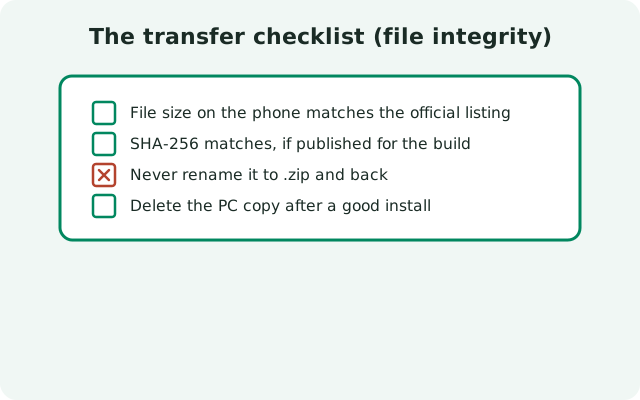
A file copied over USB should be bit-identical. But "should" isn't verification. Two checks, both cheap:
- Compare file sizes. The APK on the phone must be exactly the same byte size as the one on the computer. A short copy is the most common transfer corruption, and size catches it instantly.
- Compare fingerprints. On the computer, compute the SHA-256 of the APK (
sha256sumon Linux/Mac,certutil -hashfileon Windows; or better,apksigner verify --print-certsfrom Android's build tools to read the signing certificate fingerprint). Compare against the fingerprint on signal.org/android/apk, character by character. Our verification guide covers the exact commands.
The fingerprint check does double duty: it proves the file survived the USB copy and that it genuinely came from Signal. If anything mismatches, delete both copies and start over from the official page. Never install a file you can't verify.
When the copy fails: the usual suspects
| Symptom | Cause and fix |
|---|---|
| Phone charges but computer sees nothing | Charge-only cable, or the phone's USB mode is still "Charging." Try another cable; tap the USB notification and select File transfer. |
| USB prompt never appears | Locked phone, faulty cable, or a hub issue. Unlock the phone, swap cable and port. |
| Mac doesn't see the phone | macOS needs Android File Transfer or OpenMTP installed. Also try a different cable. Many USB-C cables are charge-only. |
| Copy starts then stalls | Flaky cable or port. Cancel, reconnect, retry. Don't install a partial file. Check the size. |
| Phone storage full | Free a few hundred MB. The copy fails silently on some phones when storage runs out. |
| "App not installed" at the end | Not a transfer problem. A Play Store Signal is already installed (signing-key conflict). Back up, uninstall it, then install the APK. |
If USB proves hopeless, the fallback is Wi-Fi: upload the APK to your own cloud storage from the PC and download it on the phone's browser, or use a local file-sharing app. Slower, but it sidesteps every cable problem at once.
from Signal's official site — file hosted by Signal, not by us. signal.org/android/apk