
How to install the Signal APK on Nothing phones
Published: October 7, 2026 · Updated: October 8, 2026
Nothing phones run Nothing OS, near-stock Android with a distinctive look, so installing Signal's APK is straightforward. There are no renamed menus to decode and no aggressive battery manager fighting your notifications. Download the official Signal APK from signal.org/android/apk (current website build 8.29.3), allow the install, and register. As a bonus, you can wire Signal notifications into the phone's signature Glyph lights.
from Signal's official site — file hosted by Signal, not by us. signal.org/android/apk
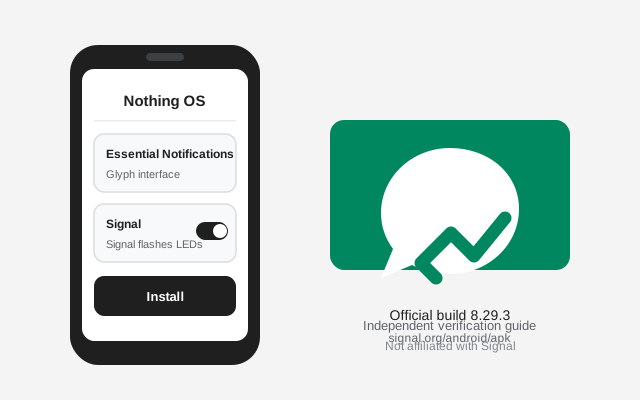
Nothing OS: same Android, different look
Nothing OS is one of the lightest Android skins in the industry: close to what Google ships on Pixels, with Nothing's own dot-matrix aesthetic on top. For sideloading, that means everything behaves like stock Android: the permission screens, the installer prompts, and the battery settings all use Google's standard layouts and names.
This applies to the whole lineup: Phone (1), Phone (2), Phone (3), and the CMF phones. The steps below are identical across them; only the Android version number differs, and that does not affect the install.
Nothing's update cadence is worth a mention: Nothing OS updates arrive every couple of months, and major Android upgrades (like the move to Android 15) keep the same settings layout. Sideloaded apps are never affected by these updates. Signal keeps working through them, and the website build keeps updating itself independently. The one exception is Nothing's open beta program: if you enroll a Phone (2) or (3) in a Nothing OS beta and something behaves oddly, check whether the beta release notes mention app-compatibility issues before blaming the APK. Stable-channel users can ignore this entirely.
This covers the full current lineup: Phone (1), Phone (2), Phone (3), Phone (2a) and (2a) Plus, and the CMF phones. Nothing has kept the software consistent across models: same Settings layout, same permission path, same Glyph interface location. If you bought a CMF Phone thinking the cheaper line might behave differently, it does not. For sideloading purposes a CMF Phone 2 Pro is a Nothing phone with a different back panel. Check your Nothing OS version at Settings → About phone if you are ever unsure; the steps here apply to every released version.
Install steps
-
Download the official APK
Open signal.org/android/apk in your browser and download the file. Current website build: 8.29.3, package
org.thoughtcrime.securesms. -
Allow installs from your browser
Open the downloaded file; Nothing OS asks for the "Install unknown apps" permission. Exact path below.
-
Verify the fingerprint
Compare Signal's published SHA-256 fingerprint against your file. How to verify.
-
Install and open
Tap Install, then Open. Errors? See the install-error guide.
-
Register
Number → SMS code → profile → PIN. More below.
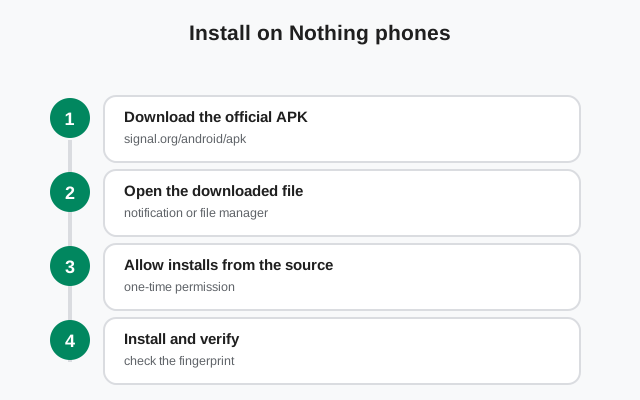
The unknown-app permission on Nothing OS
Standard stock-Android path:
Settings → Apps → Special app access → Install unknown apps → select your browser → Allow from this source.
As usual, opening the APK file first takes you straight there. Grant it to your browser only, and revoke it after installing if you prefer. Signal keeps working either way.
Bonus: Glyph lights for Signal notifications
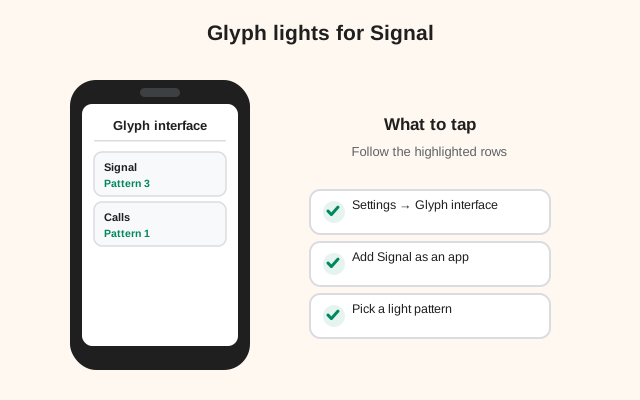
Here is the fun part unique to Nothing phones. The Glyph interface, the LED strips on the transparent back, can light up for Signal notifications, so you know a message arrived without turning the phone over:
- Open Settings → Glyph interface.
- Turn on Glyph notifications (and "Flip to Glyph" if you want lights-only alerts when the phone is face-down).
- Under per-app or essential notifications, enable Signal and pick a light pattern.
Essential Notifications can even keep one Glyph segment lit until you read the message, which is handy if you keep the phone face-down in meetings. This is purely a notification display feature; it does not change how Signal works.
Two cosmetic Nothing OS features people ask about: monochrome icon theming (Themed icons) recolors app icons to match your wallpaper. Signal's icon adapts like any other, and it changes nothing about the app. And the Glyph Composer, which lets you build custom light-and-sound ringtones, works at the system level for calls; Signal voice/video calls ring through it like normal calls. Neither feature touches message encryption or delivery. They are presentation layers, and you can ignore both if you just want a phone that works.
Nothing OS quirks worth knowing
- Beta builds exist. Nothing runs an open beta program for Nothing OS. Betas are generally stable, but if you sideload on a beta build and something odd happens, the beta, not the APK, is the first suspect.
- No bloatware battery killers. Nothing OS does not ship the aggressive background managers some brands add, so Signal's notifications behave like they do on a Pixel.
- Dot-matrix widgets. Nothing's widgets are cosmetic; they do not affect Signal. (There is no official Signal widget either way.)
- Play Protect still scans. Even on Nothing OS, Play Protect scans sideloaded APKs and may show a warning. That is expected behavior; verify the fingerprint, then proceed.
Essential Notifications deserves a second look for Signal specifically: under Settings → Glyph interface → Essential notifications, you can designate Signal so that one Glyph segment stays lit until you open the chat. Combined with "Flip to Glyph" (lights-only alerts when face-down), this gives you a silent, screen-off way to know a message is waiting, which is genuinely useful in meetings or at night. It does not drain the battery meaningfully; the LEDs sip power compared to the display. If you find the light distracting, the same screen turns it off per-app.
Notifications and battery settings
Nothing OS handles this like stock Android:
- Battery optimization: Settings → Battery → Battery optimization → Signal → Don't optimize.
- Notifications: Settings → Apps → Signal → Notifications: confirm allowed.
- Glyph: configure as described above if you want light alerts.
Delayed notifications are uncommon on Nothing phones. If you see them, our notification troubleshooting guide covers the remaining causes.
Moving from another phone to a Nothing Phone? Do the Signal move properly: enable Secure Backups on the old device, install the APK here, register the same number, and restore during setup. Our transfer walkthrough has the full sequence. Do not rely on any generic "phone clone" app to move Signal: those copy the app's files without its encrypted identity, and you will end up re-registering and losing chats. The backup-and-restore path takes ten minutes and is the only supported way.
Updates, registration, and extras
- Updates: the website build updates itself. See our APK update guide.
- Registration: number → SMS code (or voice call) → profile → PIN. Stuck on the code? SMS troubleshooting.
- First run: first-run guide plus the security checklist.
- Permissions: what each permission means.
- New phone: transfer walkthrough: back up before wiping the old ked questions
Does the Signal APK work on all Nothing phones?
Yes. Phone (1), Phone (2), Phone (3), and CMF phones all run Nothing OS on standard Android, and the same official APK installs on all of them. There is no per-model build.
Will Glyph lights work with the sideloaded APK?
Yes. Glyph notifications are a system feature that works with any app, including the website build of Signal. Enable Signal under Settings → Glyph interface.
Is sideloading safe on Nothing OS?
As safe as anywhere else, provided the file comes from signal.org/android/apk and the SHA-256 fingerprint matches. Our safety assessment explains the checks.
Can I use the Play Store version instead?
Of course. If you prefer Play Store updates, install Signal from there. Just do not mix the two builds on one phone: back up, uninstall one, then install the other.
Does Signal support the Nothing Phone's always-on display?
Signal notifications appear on the always-on display like any other app's, subject to your notification settings. There is no Signal-specific always-on integration.
Do I need a Nothing account to sideload apps?
No. A Nothing account is optional and unrelated to installing apps. Sideloading uses Android's built-in permission only: no account, no registration, no login anywhere in the process.
Will the APK work on the CMF Phone 2 Pro?
Yes. CMF phones run Nothing OS with the same near-stock Android underneath, so the identical steps and the identical APK apply. Glyph behavior differs slightly by model (fewer LED zones on CMF), but install and notifications work the same.
Next steps: download from the official Signal APK page, confirm everything with our install verification guide, and set up Glyph alerts once you are registered.