
Stuck on an Old Signal Version? Here's How to Fix It
Published: October 7, 2026 Updated: October 8, 2026
First: confirm you are actually behind
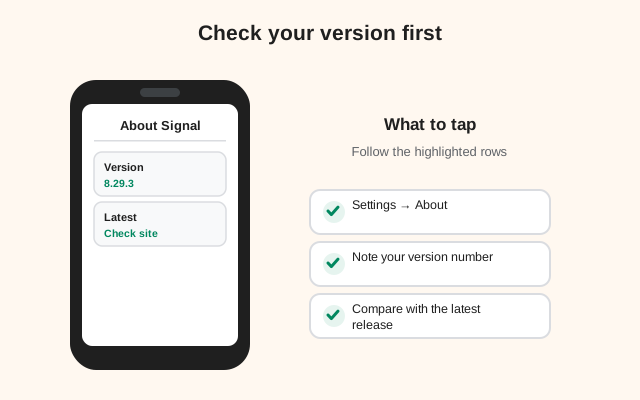
Before changing anything, check what you are running. Open Signal, tap your profile icon, and go to Settings, then look for the version info (usually at the bottom, under Help or About). Write down the full number. For example, the current website build as of this guide is 8.29.3.
Now compare it with the newest build on Signal's official download page or our current-version reference. A one-digit difference in the last number (8.29.1 vs 8.29.3) is a patch build. Worth getting, but not urgent. Being a whole minor version behind (8.28 vs 8.29) means updates have genuinely stopped arriving, and the causes below apply.
One more check: are you sure a newer build exists for your channel? The website build and the Play build do not always share the same number. If the Play Store lists a newer version than what you have, you are behind. If the newest version anywhere matches yours, you are not stuck. There is simply nothing new yet.
Cause 1: Play Store auto-update stalled
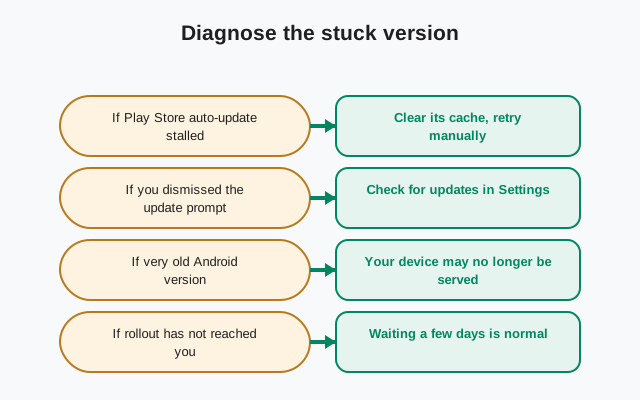
This is the most common cause for Play Store users. Auto-update is a convenience, not a guarantee, and it fails quietly:
- Auto-update is off for Signal. Open the Play Store, find Signal, tap the three dots, and make sure "Enable auto update" is ticked. It can get switched off after a phone reset or when storage runs low.
- Updates are paused for Wi-Fi only and you are on mobile data. Play Store settings can restrict updates to Wi-Fi. If you rarely connect to Wi-Fi, updates pile up silently.
- The Play Store itself is stuck. Clear the Play Store's cache (Settings > Apps > Google Play Store > Storage > Clear cache. This does not delete your apps), then open the Play Store and pull down to refresh. Pending updates often appear immediately after.
- Battery saver is blocking background work. Aggressive battery optimization can stop the Play Store from checking for updates. This is especially common on phones from brands with strict power management.
The manual override is simple: open the Play Store, search Signal, and tap Update. If no Update button appears, you are not behind on this channel after all.
Cause 2: you dismissed the website build's prompt
If you installed Signal from Signal's own APK page instead of the Play Store, updates come from inside the app. The website build checks for updates itself and shows you a prompt when a new one is ready. Dismiss that prompt, or tap "not now" a few times, and it is easy to forget the update exists.
Unlike the Play Store, there is no central list of pending updates to remind you. So if you run the website build, make it a habit: open Signal's settings every couple of weeks and look for the update option. If a prompt appears, take it the same day. Updates are how security fixes reach you, and the website build is your own responsibility in a way the Play build is not.
If the in-app update fails when you finally accept it (downloads stall, the install refuses), do not keep retrying blindly. The update-failed troubleshooting page walks through every stall and refusal, step by step.
Cause 3: your Android version is no longer served
This one is not a malfunction. Signal eventually stops building new versions for the oldest Android releases. When your phone crosses that line, updates simply stop arriving. No error, no warning, just silence. Your app keeps working on the last build it received.
How to tell if this is you: check which Android version your phone runs (Settings > About phone), then read our Android support timeline to see where the line currently sits. If your phone is on Android 7 or 8, start with the Android 7 and 8 guide, which covers your options honestly, including what staying on the last working build really costs you.
No amount of clearing caches or reinstalling will bring updates back to an unsupported phone. If this is the cause, the fix is a decision, not a setting: stay put, upgrade the phone's software, or move to a newer device.
Cause 4: the rollout hasn't reached you yet
Signal releases in stages. When a new build is tagged, it goes to a small group first, then widens over days. During that window, your friend's phone can show the new version while yours still shows the old one, and nothing is wrong.
How to tell a slow rollout from a real problem: wait 48 hours. If the new version still has not arrived after two days and everyone else has it, work the causes above. If you cannot wait, the manual path below gets you the build today, as long as your phone is still supported.
The manual update path (backup first)
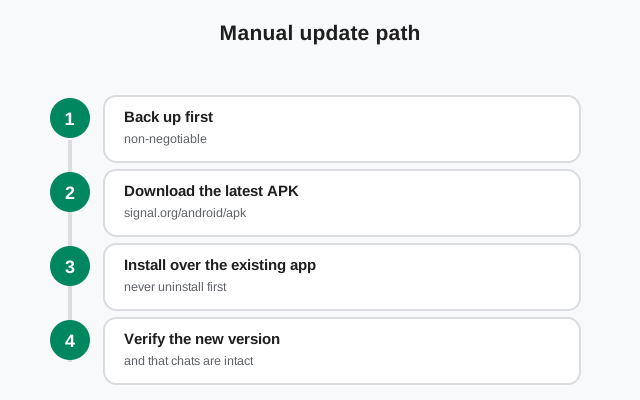
When automatic updates fail you, the manual path is always available. Do it in this order:
- Back up first. In Signal, go to Settings > Chats > Chat backups and make sure backups are on. Write down your backup passphrase. The current format is a 64-character recovery key (the old 30-digit format is retired). Our Android backup guide covers the whole process. Never reinstall before this step.
- Know your build. The website build and the Play build use different signing keys and cannot be installed over each other. If you have the Play version, update through the Play Store. If you have the website version, download the new APK from Signal's official APK page and install it over the old one.
- Install and verify. Open the downloaded file, allow the install, then check the version number in Settings to confirm it moved.
If the new APK refuses to install over your current app with a "conflicting package" style error, you almost certainly mixed the channels: Play build on the phone, website APK in your hand, or the reverse. Go back to the channel you started with.
Quick diagnosis table
| Symptom | Most likely cause | First step |
|---|---|---|
| Play Store shows no Update button, but others have a newer version | Auto-update paused or Wi-Fi-only | Check Signal's auto-update setting and your Play Store update preferences |
| Website build never prompts you | Prompt dismissed earlier, or check not run | Look for the update option in Signal's settings; take the prompt when it appears |
| Nothing new for months, phone is several years old | Android version no longer served | Check the support timeline: this needs a decision, not a fix |
| Friends got it, you didn't, gap under 2 days | Staged rollout | Wait 48 hours, or use the manual path above |
| Update downloads but won't install | Corrupted download or channel mismatch | See the update-failed guide |
If nothing works
When every cause above is ruled out, the last resort is a clean reinstall. It is safe only with a verified backup. Confirm your chat backup completed recently, confirm you can read your 64-character recovery key, then uninstall and reinstall from your original channel (Play Store or Signal's APK page). Restore the backup during setup.
After reinstalling, the version should be current. If it is still old on a supported phone, something unusual is going on. Check our mirror warning page to make sure your APK genuinely came from Signal, because a tampered installer can behave in strange ways.
from Signal's official site, file hosted by Signal, not by us
Frequently asked questions
How do I check my Signal version?
Open Signal, tap your profile icon, go to Settings, and look at the bottom of the screen under Help or About. Compare the number there with the current build on Signal's official download page.
Why is my Signal not updating automatically?
The four usual causes: Play Store auto-update is off or Wi-Fi-only, you dismissed the website build's in-app prompt, your Android version no longer receives new builds, or the rollout hasn't reached you yet.
Can I force Signal to update right now?
Yes. Back up your chats first, then download the newest build from Signal's official APK page (for the website build) or tap Update in the Play Store (for the Play build). Manual updating works as long as your phone is still supported.
The update installed but the version number didn't change. Why?
Either the rollout hadn't actually shipped a new build to your channel yet, or the install silently failed. Re-check the version after restarting the app; if it truly didn't move, work through the update-failed troubleshooting steps.
Will I lose my chats if I reinstall to fix this?
Not if you back up first. Turn on chat backups in Settings and write down your 64-character recovery key before uninstalling. Without that key, a reinstall can mean starting from zero.
Related guides: all version guides · update-failed troubleshooting · Android support timeline · why old versions are a security risk · Android 7 and 8 plan-ahead guide · how Signal updates work