
How to install the Signal APK on a OnePlus phone
Published: October 7, 2026 Updated: October 8, 2026
OnePlus phones run OxygenOS: fast, close to stock, with an Oppo-flavored security layer underneath. Installing Signal's APK is simple once you know where the permission lives and what the built-in security scan popup means (spoiler: it is expected, not a warning about Signal). Download the official Signal APK from signal.org/android/apk (current website build 8.29.3) and follow the steps below.
from Signal's official site file hosted by Signal, not by us. signal.org/android/apk
Why sideload on a OnePlus?
OnePlus phones ship with the Play Store working, so sideloading is a choice, not a necessity. The usual reasons:
- The website build updates itself without any Google account. That helps if you run your OnePlus de-Googled or with Play services restricted.
- Region and account issues. Play Store availability hiccups and account problems disappear when you install direct.
- Staged rollouts. The APK on signal.org is the same file for everyone, the moment Signal publishes it.
If none of those apply, the Play Store version is equally good. The important thing is to pick one build: they cannot mix.
OxygenOS or ColorOS: check which your OnePlus runs
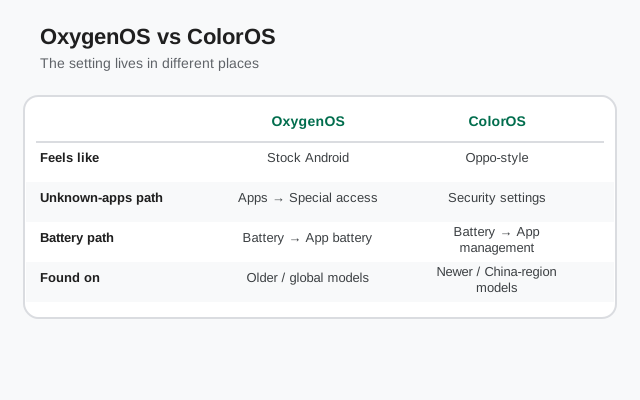
Since OnePlus merged its software efforts with Oppo, newer OnePlus phones run OxygenOS built on top of ColorOS. The name says OxygenOS, but parts of the settings (including security screens) behave like Oppo's ColorOS. Older OnePlus phones run classic OxygenOS.
Check at Settings About device Version. Either way, the install steps below work; the only difference is cosmetic. A menu might be called "Security" on one and "Privacy" on the other. Our Oppo install guide covers the full ColorOS path if your OnePlus leans that way.
| OxygenOS version | Android base | Character |
|---|---|---|
| OxygenOS 13 and earlier | Android 13 and earlier | Classic OxygenOS; near-stock settings. |
| OxygenOS 14 / 15 | Android 14 / 15 | ColorOS-based under the skin; some menus renamed. |
OnePlus also ships Parallel Apps (its dual-apps feature) on most models. It can clone apps to run two accounts. But cloning Signal means registering the clone with a second phone number, and cloned messengers have a mixed record with notifications. If you need two Signal accounts (personal + work), read our dual-apps guide before cloning; most people are better served by one proper install. And a warning about OnePlus Switch / Clone Phone: like all generic phone-cloning tools, it does not transfer Signal's encrypted identity correctly. Move Signal with Secure Backups, not with the clone app.
Install steps
-
Download the official APK
Open signal.org/android/apk in your browser and download the file. Current website build: 8.29.3, package
org.thoughtcrime.securesms. -
Allow the install
Open the file and grant the unknown-app permission. Path below.
-
Verify the fingerprint
Compare Signal's published SHA-256 fingerprint with the file before installing (how to verify). More on verification below.
-
Expect the security scan
OnePlus runs a built-in security scan during install. This is normal, not a warning about Signal.
-
Install, open, register
Tap Install, then Open, then register your number.
Unknown-app permission path on OxygenOS
On recent OxygenOS:
Settings Security Install unknown apps select your browser Allow.
On some versions the same screen lives at Settings Apps Special app access Install unknown apps. Both are the same per-app grant. Allow your browser, install Signal, revoke afterward if you like.
What the installer screen itself shows is worth a glance: Android displays the app name (Signal), the developer (Signal Foundation), and the permissions it wants, before you tap Install. Take the two seconds to confirm the developer name reads Signal Foundation. A repackaged fake would show a different developer or an odd app name here, and this screen is your last checkpoint before the app lands on your phone. Combined with the fingerprint check you already did, these two verifications, one cryptographic, one visual, are the complete authenticity story.
The install prompt and what to expect
OnePlus phones show two things during a sideload that surprise first-timers:
- The built-in security scan. A popup says the phone is scanning the app for security risks. This runs for every sideloaded app. It is OnePlus's standard check, not a verdict on Signal. Let it finish, then continue.
- Play Protect's warning. If Google Play services are present, Play Protect may flag the APK as from an unknown source. Again: expected for any sideload. Proceed only because you verified the fingerprint, not because you dismissed a warning blindly. Our Play Protect guide explains the distinction.
After the scan passes, the normal Android installer appears: Install Open. If the scan itself blocks the install (rare), re-download the file. A corrupt download is the usual cause.
Two more OnePlus-specific settings that affect alerts. First, battery optimization per app also appears at Settings Apps Special app access Optimize battery use. If Signal is listed as optimized there, turn it off; this is a second, separate switch from the main Battery screen on some OxygenOS versions. Second, gaming and Zen modes: OnePlus's Game Mode / Zen Mode can suppress notifications while active. If messages only go missing while you are gaming, check the Game Space notification settings rather than Signal. The app is fine. The game overlay is just holding its alerts.
Notification and battery settings for OnePlus
OxygenOS is lighter on background killing than ColorOS proper, but two settings still matter:
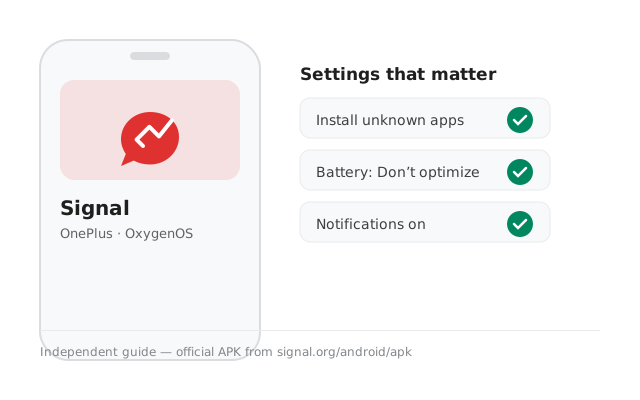
- Battery optimization off: Settings Battery Battery optimization (or App battery management) Signal Don't optimize.
- Auto-launch allowed: on ColorOS-based OxygenOS, check Settings Apps App management Signal and allow auto-launch / background activity.
- Notifications on: Settings Apps Signal Notifications.
Test with the screen off for five minutes. Persistent delays are unusual on OnePlus. If they happen, see notification troubleshooting.
If the Play Store version is already installed
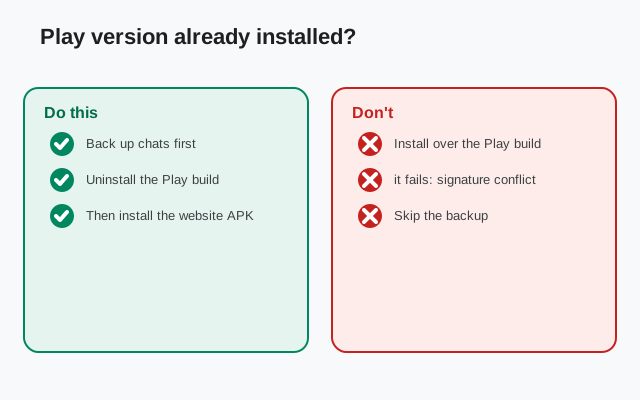
This is the single most common OnePlus sideload failure: "App not installed." The cause is signing keys: the Play Store build and the website APK build are signed differently, and Android will not install one over the other. The fix:
- Back up your chats first: enable Secure Backups and save the recovery key.
- Uninstall the Play Store version of Signal.
- Install the APK, register the same number, restore during setup.
Our build-switching checklist walks through this without data loss, and the install-error guide covers every other cause of the error.
A final OnePlus note on updates: OxygenOS system updates (the monthly/quarterly phone updates) never touch your sideloaded apps. Signal survives them untouched, and the website build's own updater is independent of both OxygenOS and the Play Store. If an OxygenOS update ever changes a menu name referenced in this guide, the setting still exists under a near-identical label; use the Settings search bar and type "unknown apps" or "battery optimization" to jump straight to it. And if you ever want to compare notes with the ColorOS side of the family, our Oppo guide and Realme guide document the shared roots.
If you downloaded the APK on a computer instead of the phone, the USB route works fine: download from signal.org/android/apk on your PC, connect the OnePlus via USB, copy the file into the phone's Download folder, then open it with the phone's file manager. Verify the fingerprint on the PC before copying: it is actually easier there with desktop checksum tools, and the file you install is then already proven genuine. This route is also handy when mobile data is limited, since you download once over the PC's connection.
Quick way to confirm your installed version any time: open Signal, tap your profile icon, go to Settings, and scroll to the very bottom. The version number is printed there. Compare it against the current website build on signal.org/android/apk (8.29.3 at the time of writing). If yours is older and no update prompt has appeared, open our APK update guide. The website build normally prompts on its own, but a manual check now and then never hurts.
Updates, verification and registration
- Updates: the website build checks for updates itself and prompts you to install them. Details in our APK update guide. Also see how to check the latest version.
- Verification: the SHA-256 fingerprint on signal.org/android/apk is your proof of authenticity. Full verification guide. Confirm the install itself with our install verification guide.
- Registration: number SMS code (or voice call) profile PIN. Code not arriving? SMS troubleshooting.
- First run: first-run guide and security checklist.
Next steps: download from the official Signal APK page, and if your OnePlus runs the ColorOS-based build, skim our Oppo guide for the matching menu names.