
How to install the Signal APK on an Oppo phone
Published: October 7, 2026 · Updated: October 8, 2026
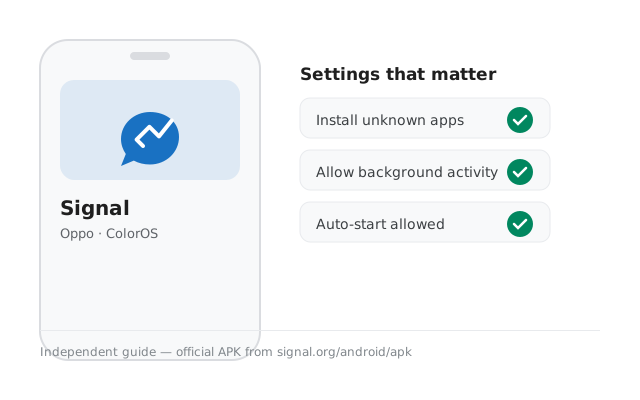
Oppo phones run ColorOS: polished, feature-rich, and a little protective about sideloading. That protectiveness shows up as an extra security scan during install and strict battery management afterward. Neither is a problem once you know what to expect. Download the official Signal APK from signal.org/android/apk (current website build 8.29.3) and follow this guide for the ColorOS-specific steps.
from Signal's official site — file hosted by Signal, not by us. signal.org/android/apk
Why sideload on an Oppo?
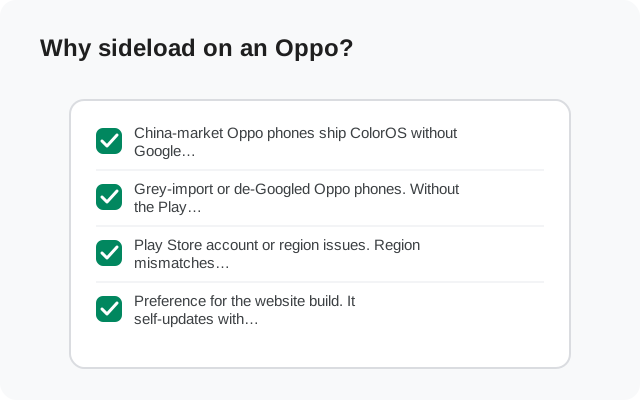
Most Oppo phones include the Play Store, so sideloading is usually a deliberate choice:
- A Google-free setup. The website build updates itself, so you can run Signal without ever opening the Play Store.
- Play Store trouble. Account issues, regional restrictions, or a broken Play services install all disappear with the direct APK.
- Immediate updates. The file on signal.org is the current build for everyone, no staged rollout.
Our OnePlus guide covers the sister brand (OxygenOS shares ColorOS roots), and the Realme guide covers Realme UI, also ColorOS-based. The steps here apply to all of them with minor menu-name differences.
Find X flagship or A-series budget phone: the steps do not change. ColorOS is ColorOS across Oppo's lineup, and the official Signal APK is a single universal build, so there is no "Find X version" or "A-series version" to hunt for. The only practical difference on budget A-series phones is storage: keep at least 1GB free so the download and install both complete cleanly.
Install steps
-
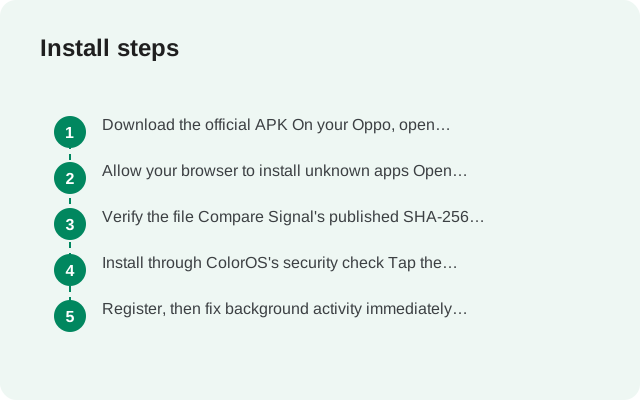
Download the official APK
Open signal.org/android/apk in your browser and download the file. Current website build: 8.29.3, package
org.thoughtcrime.securesms. -
Allow the install
Open the file and grant the unknown-app permission to your browser. Exact ColorOS path below.
-
Verify the fingerprint
Compare Signal's published SHA-256 fingerprint with your file before installing. How to verify.
-
Pass the security scan
ColorOS scans the app during install. Expected, explained below.
-
Install, open, register
Tap Install, then Open, then register your number.
Unknown-app permission path on ColorOS
On current ColorOS versions:
Settings → Security → Install unknown apps → select your browser → Allow.
On some versions it sits one level deeper at Settings → Security → More security settings → Install unknown apps. Older ColorOS may label it under Settings → Additional settings → Device & privacy. All of these lead to the same per-app toggle list. Grant it to your browser only, never to apps you do not recognize, and revoke it after installing if you prefer.
On older ColorOS (11/12), the permission path differs slightly: look under Settings → Additional settings → Device & privacy → Install unknown apps, or simply open the APK file and let the system take you to the right screen. If the scan screen ever reports an actual problem with the file, as opposed to its routine "no risks found," do not override it: delete the file, clear the browser cache, and re-download from signal.org. A flagged genuine file is far less likely than a corrupted or tampered download, and re-downloading costs two minutes.
ColorOS's security check at install (expected)
During the install, ColorOS runs its built-in security scan and shows you a result screen. First-timers often read this as a warning about Signal. It is not:
- It scans every sideloaded app. This is ColorOS doing its job, not a judgment on this particular file.
- "No risks found" is the normal result for the genuine Signal APK.
- If Play Protect is active, you may see a second prompt from Google about unknown sources, which is also routine for sideloads. Our Play Protect guide explains what it is really telling you.
Proceed because you verified the fingerprint: that is the actual proof the file is genuine, not tapping past a warning without thinking. If the scan ever reports a real problem, delete the file and re-download from the official page.
ColorOS hides two extra battery killers beyond the main battery screen, and both can silence Signal. First, Sleep standby optimization (Settings → Battery → More battery settings): when on, it aggressively sleeps apps overnight. The classic "no messages until morning" symptom. Either turn it off or make sure Signal is exempted. Second, Deep optimization / App quick freeze on some ColorOS versions: it freezes apps you have not opened recently. An app you open daily (like your messenger) is rarely frozen, but a secondary device where Signal sits idle can be. Exempt Signal if you use it as a linked or backup device. Between these two and the main battery settings above, ColorOS has no more places to hide a notification problem.
Notification survival kit for Oppo
ColorOS is one of the stricter Android skins about background apps, so this section matters. Work through it in order:
- Allow background activity. Settings → Battery → App battery management → Signal → Allow background activity (not "Intelligent control").
- Allow auto-start. Settings → Apps → App management → Signal: allow auto-launch / start in background if the option exists on your version.
- Lock Signal in recents. Open the recent-apps view, pull down on Signal's card (or tap the menu) and lock it so swiping does not kill it.
- Confirm notifications. Settings → Notifications & status bar → Manage notifications → Signal: allowed, with sound and badges as you prefer.
Then the five-minute screen-off test: have someone message you while the phone sits untouched. On-time arrival means you are done. If messages lag, our notification troubleshooting guide goes deeper.
Oppo's App Cloner (Settings → Apps → App cloner) can create a second copy of apps for dual accounts. Technically you can clone Signal, but the clone needs its own phone number for registration, and cloned apps on ColorOS have a spottier record with background notifications than the original. Unless you genuinely need two Signal accounts on one phone, skip the clone and run one proper install. If you do need two accounts, our dual-apps guide explains the trade-offs first.
If the Play Store version is already installed
The website APK and the Play Store build are signed with different keys, so Android refuses to install one over the other. You will see "App not installed." The fix is a clean switch:
- Enable Secure Backups on the old install and save your recovery key.
- Uninstall the Play Store version.
- Install the APK, register the same number, restore during setup.
Read the build-switching checklist first. It is the difference between a smooth move and lost chats. Other install errors are covered in the install-error guide.
Updates, verification and registration
- Updates: the website build updates itself. APK update guide. Check what is current with the latest-version page.
- Verification: the SHA-256 fingerprint on signal.org/android/apk, compared character by character. Full guide. Also run our install verification checklist after setup.
- Registration: number → SMS code (or voice call) → profile → PIN. Code missing? SMS troubleshooting.
- First run: first-run guide and security checklist.
Frequently asked questions
Is the ColorOS security scan saying Signal is dangerous?
No. ColorOS scans every sideloaded app as a matter of routine. It is the system doing its normal job. The genuine Signal APK passes it. Your real proof of authenticity is the SHA-256 fingerprint match, not the scan screen.
Why does Oppo make sideloading harder than other brands?
It does not block sideloading. It just adds a scan step and asks clearly. The permission path is standard Android. Compared with some brands, ColorOS is actually transparent about what it is doing.
My notifications arrive late on my Oppo. What is the usual cause?
ColorOS battery management restricting Signal's background activity. Set App battery management to ‘Allow background activity’ for Signal, allow auto-start, and lock it in recents. That fixes the large majority of cases.
Can I keep both the Play version and the APK version installed?
No. Android treats them as conflicting builds of the same app (same package name, different signatures) and will not install the second. Pick one. Most sideloaders choose the website build for its self-updating.
Does Signal work with Oppo's Game Space / App Cloner?
Signal works normally alongside Game Space. App Cloner (dual apps) can run a second copy of apps, but cloning Signal means a second registration with a second number. See our dual-apps guide before trying it.
Does ColorOS 15 change any of these steps?
No. ColorOS 15 keeps the same permission path (Settings → Security → Install unknown apps) and the same install-time security scan. Menu wording may shift slightly between versions. Use the Settings search bar and type ‘unknown apps’ if a label does not match.
Next steps: download from the official Signal APK page, and if you also use the sister brands, see our OnePlus guide and Realme guide. The ColorOS family shares most of these steps.